
Sharing
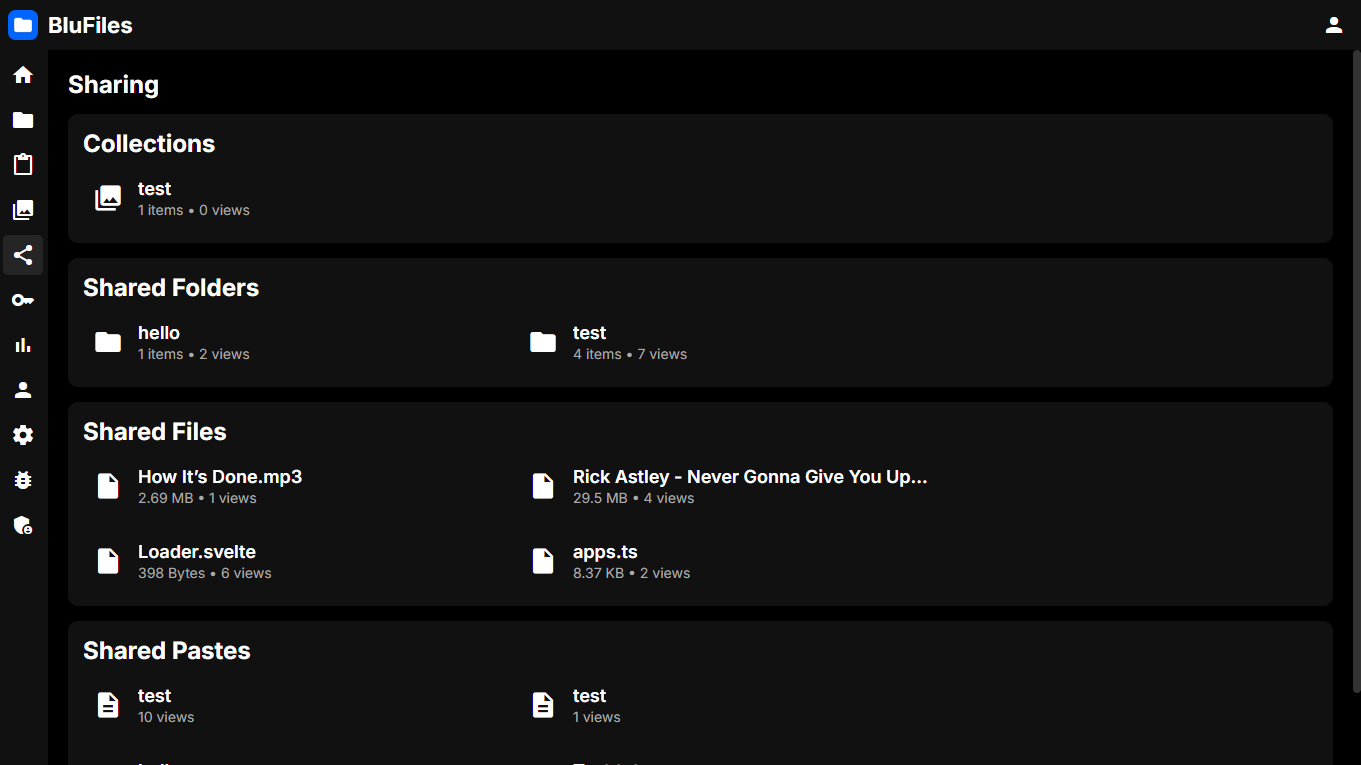
In the "Sharing" section, you will see an overview of your shared files, folders, pastes and collections. From here, you can also copy or remove links to your shared items.
Interface
The main interface shows a list of your shared items:
Sharing Items
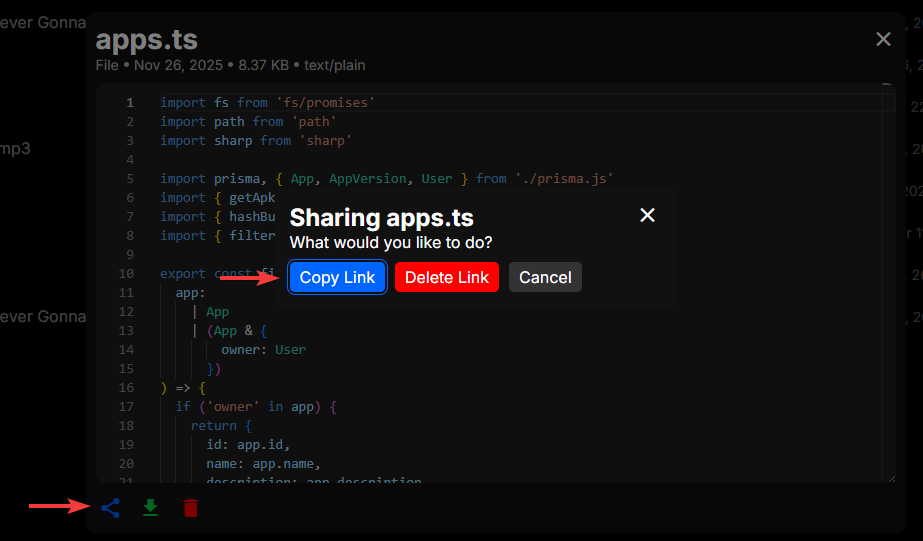
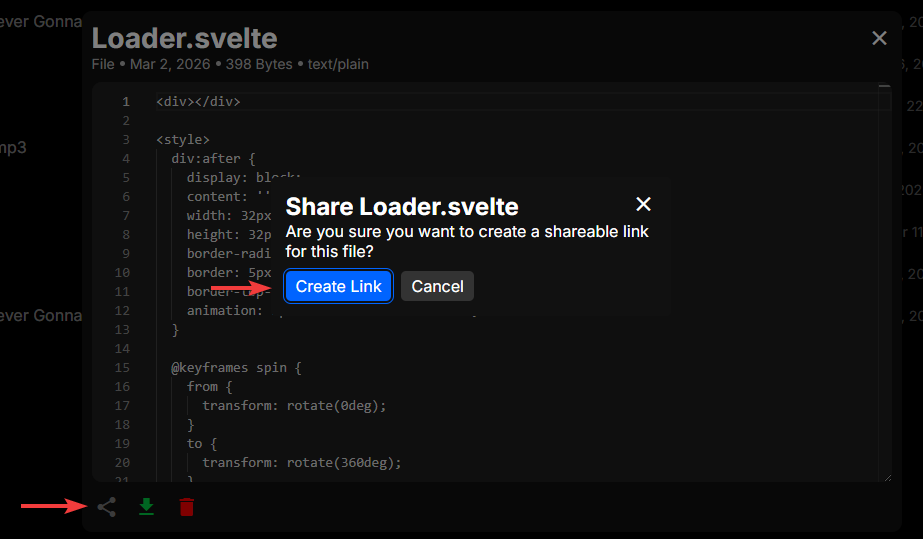
To share something, find the "Share" icon on a file, folder, paste or collection and click it. Here you can choose to create and copy a link, or delete an existing shared link.
Viewing Shared Items
Shared items can be viewed by anyone with the correct link. The shared item page shows the content of the file, folder, paste or collection, along with information about the item and the person who shared it. Files will have options to be downloaded.
Viewing Files
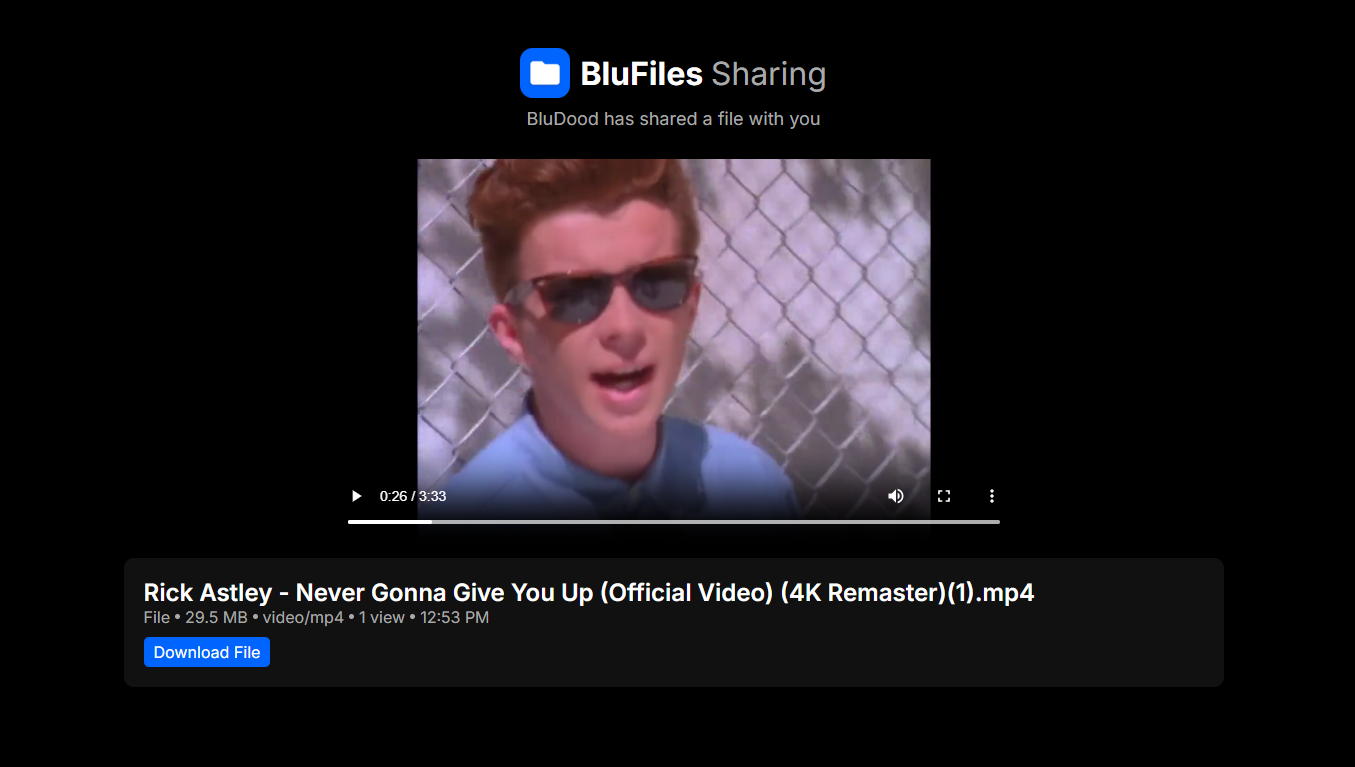
When viewing a shared file, you can see the file's content and metadata. You can also download the file directly from this page.
TIP
Supported file types will be rendered directly in the browser. This includes images, videos, audio files and plain text files. If the file type is unknown/unsupported, the preview will be hidden.
Viewing Folders
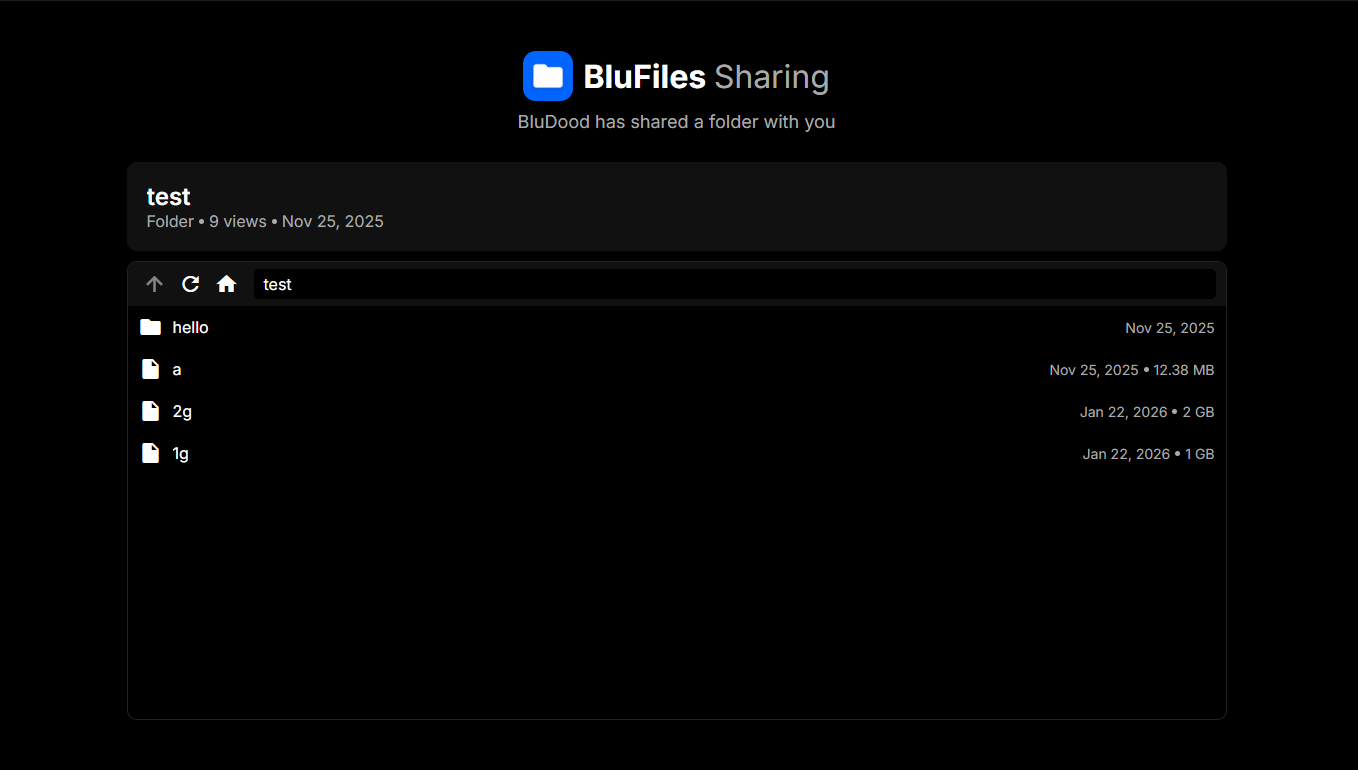
When viewing a shared folder, you can see the list of files and subfolders, similar to the file manager interface. You can also click on a file to view or download it.
Viewing Pastes
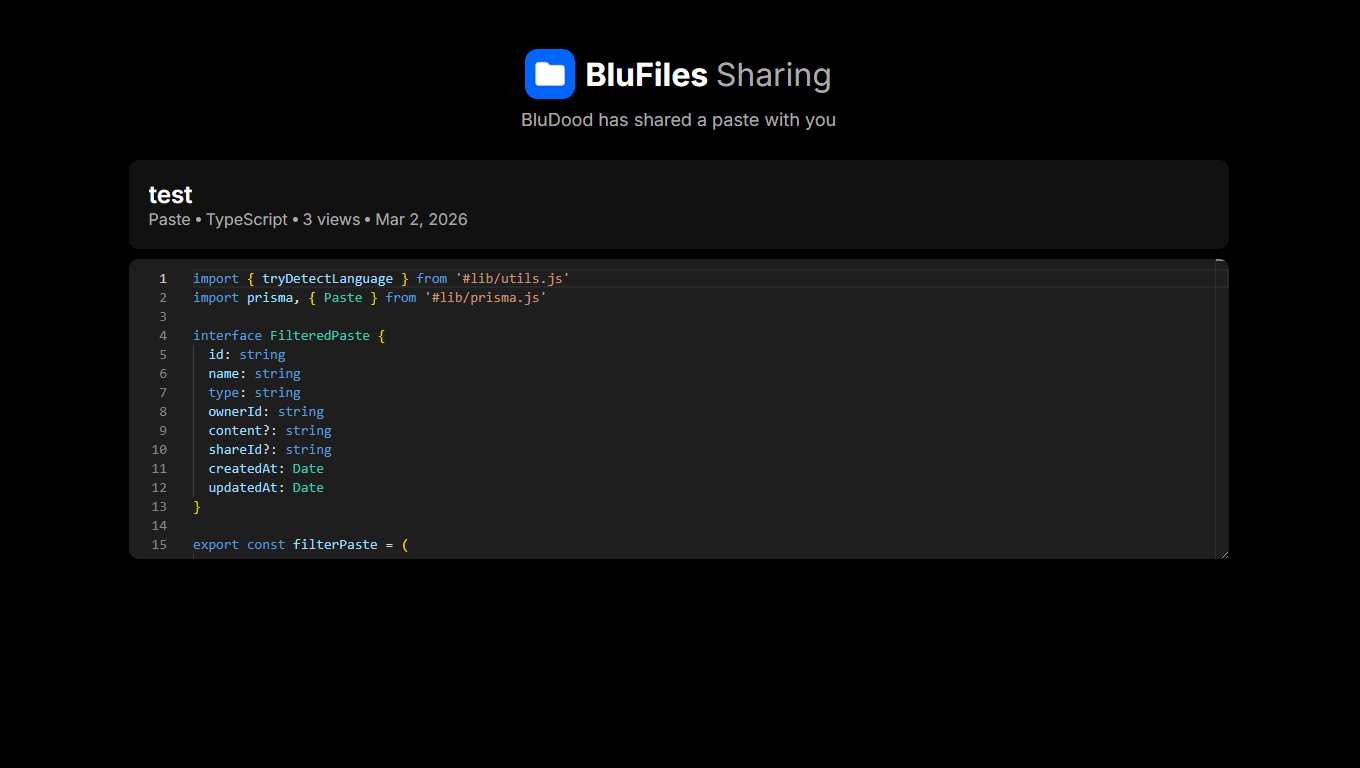
When viewing a shared paste, you can see the content and some metadata. This uses the same code editor as the paste editor, which makes it easy to highlight and copy code.
Removing Shared Links
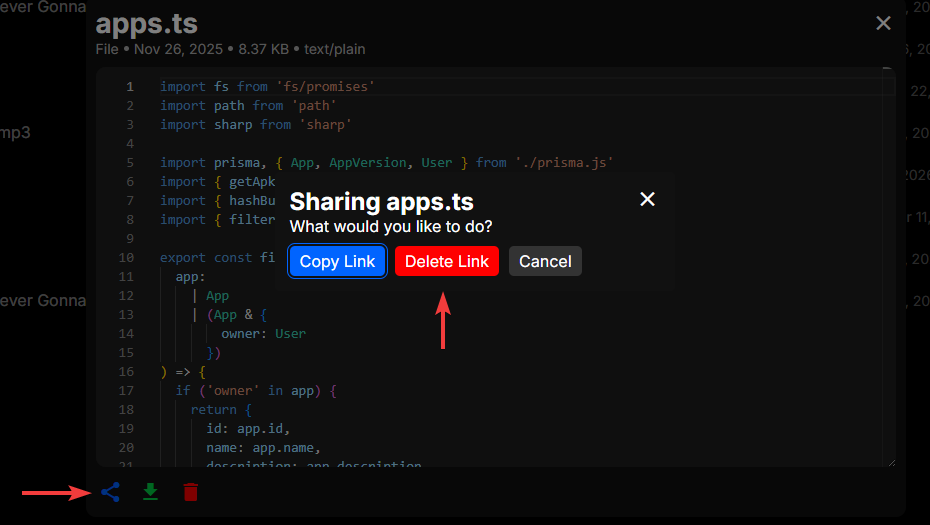
Shared links can be removed from the sharing interface. Just click the share icon and choose "Delete Link" to remove the shared link.